Start with a trigger
Select a trigger that sets your workflow in motion.
This could be anything from a new order in your Shopify store to a customer signing up for your newsletter.
Triggers are the starting points that tell MESA when to act.


MESA is the most flexible way automate Zendesk to Mailgun. Easily add workflows to simplify your work.
MESA helps you make workflows that keeps your business running. A trigger is the event to start a workflow then, actions are performed.
Tags
Timestamp
Storage
Recipient-domain
Event
Campaigns
User-variables
Flags
Log-level
Envelope
Message
Recipient
ID
Delivery-status
Tags
Timestamp
Storage
Recipient-domain
Event
Campaigns
User-variables
Flags
Log-level
Envelope
Message
Recipient
ID
Delivery-status
Tags
Timestamp
Storage
Recipient-domain
Event
Campaigns
User-variables
Flags
Log-level
Envelope
Message
Recipient
ID
Delivery-status
Tags
Timestamp
Storage
Recipient-domain
Event
Campaigns
User-variables
Flags
Log-level
Envelope
Message
Recipient
ID
Delivery-status
Tags
Timestamp
Storage
Recipient-domain
Event
Campaigns
User-variables
Flags
Log-level
Envelope
Message
Recipient
ID
Delivery-status
Tags
Timestamp
Storage
Recipient-domain
Event
Campaigns
User-variables
Flags
Log-level
Envelope
Message
Recipient
ID
Delivery-status
Starts when a recipient requests to be unsubscribed from your mailings.
ID
Subject
Description
Created At
Updated At
Status
Priority
Type
Actor ID
Requester ID
Submitter ID
Assignee ID
Organization ID
Group ID
Brand ID
Form ID
External ID
Is Public
Tags
Custom Status
Via
Event
ID
Subject
Description
Created At
Updated At
Status
Priority
Type
Actor ID
Requester ID
Submitter ID
Assignee ID
Organization ID
Group ID
Brand ID
Form ID
External ID
Is Public
Tags
Custom Status
Via
Event
Starts when a comment is created.
ID
Subject
Description
Created At
Updated At
Status
Priority
Type
Actor ID
Requester ID
Submitter ID
Assignee ID
Organization ID
Group ID
Brand ID
Form ID
External ID
Is Public
Tags
Custom Status
Via
Event
ID
Subject
Description
Created At
Updated At
Status
Priority
Type
Actor ID
Requester ID
Submitter ID
Assignee ID
Organization ID
Group ID
Brand ID
Form ID
External ID
Is Public
Tags
Custom Status
Via
Event
ID
Subject
Description
Created At
Updated At
Status
Priority
Type
Actor ID
Requester ID
Submitter ID
Assignee ID
Organization ID
Group ID
Brand ID
Form ID
External ID
Is Public
Tags
Custom Status
Via
Event
ID
Subject
Description
Created At
Updated At
Status
Priority
Type
Actor ID
Requester ID
Submitter ID
Assignee ID
Organization ID
Group ID
Brand ID
Form ID
External ID
Is Public
Tags
Custom Status
Via
Event
ID
Subject
Description
Created At
Updated At
Status
Priority
Type
Actor ID
Requester ID
Submitter ID
Assignee ID
Organization ID
Group ID
Brand ID
Form ID
External ID
Is Public
Tags
Custom Status
Via
ID
Subject
Description
Created At
Updated At
Status
Priority
Type
Actor ID
Requester ID
Submitter ID
Assignee ID
Organization ID
Group ID
Brand ID
Form ID
External ID
Is Public
Tags
Custom Status
Via
Event
Starts when a ticket's custom status is updated.
Starts when a ticket is deleted.
ID
Subject
Description
Created At
Updated At
Status
Priority
Type
Actor ID
Requester ID
Submitter ID
Assignee ID
Organization ID
Group ID
Brand ID
Form ID
External ID
Is Public
Tags
Custom Status
Via
Event
ID
Subject
Description
Created At
Updated At
Status
Priority
Type
Actor ID
Requester ID
Submitter ID
Assignee ID
Organization ID
Group ID
Brand ID
Form ID
External ID
Is Public
Tags
Custom Status
Via
Event
ID
Subject
Description
Created At
Updated At
Status
Priority
Type
Actor ID
Requester ID
Submitter ID
Assignee ID
Organization ID
Group ID
Brand ID
Form ID
External ID
Is Public
Tags
Custom Status
Via
Event
ID
Subject
Description
Created At
Updated At
Status
Priority
Type
Actor ID
Requester ID
Submitter ID
Assignee ID
Organization ID
Group ID
Brand ID
Form ID
External ID
Is Public
Tags
Custom Status
Via
Event
ID
Subject
Description
Created At
Updated At
Status
Priority
Type
Actor ID
Requester ID
Submitter ID
Assignee ID
Organization ID
Group ID
Brand ID
Form ID
External ID
Is Public
Tags
Custom Status
Via
Event
ID
Subject
Description
Created At
Updated At
Status
Priority
Type
Actor ID
Requester ID
Submitter ID
Assignee ID
Organization ID
Group ID
Brand ID
Form ID
External ID
Is Public
Tags
Custom Status
Via
Event
Timestamp
ID
Subject
Description
Created At
Updated At
Status
Priority
Type
Actor ID
Requester ID
Submitter ID
Assignee ID
Organization ID
Group ID
Brand ID
Form ID
External ID
Is Public
Tags
Custom Status
Via
Event
ID
Subject
Description
Created At
Updated At
Status
Priority
Type
Actor ID
Requester ID
Submitter ID
Assignee ID
Organization ID
Group ID
Brand ID
Form ID
External ID
Is Public
Tags
Custom Status
Via
Event
ID
Subject
Description
Created At
Updated At
Status
Priority
Type
Actor ID
Requester ID
Submitter ID
Assignee ID
Organization ID
Group ID
Brand ID
Form ID
External ID
Is Public
Tags
Custom Status
Via
Event
Starts when a ticket's SLA policy is updated.
ID
Subject
Description
Created At
Updated At
Status
Priority
Type
Actor ID
Requester ID
Submitter ID
Assignee ID
Organization ID
Group ID
Brand ID
Form ID
External ID
Is Public
Tags
Custom Status
Via
Event
ID
Subject
Description
Created At
Updated At
Status
Priority
Type
Actor ID
Requester ID
Submitter ID
Assignee ID
Organization ID
Group ID
Brand ID
Form ID
External ID
Is Public
Tags
Custom Status
Via
Event
Starts when a ticket is updated.
Add one member to a mailing list.
Add a bounce record to a domain's bounce list.
Message
Add multiple members to a mailing list.
Message
Message
Address
Name
Description
Access Level
Create a new route.
Login
Password
Name
Description
Template
Tag
Engine
Comment
Create a new webhook. When adding a clicked or opened webhook, ensure that you also have tracking enabled.
Message
Message
Message
Message
Remove a domain from your account.
Remove a mailing list.
Remove a member from a specific mailing list.
Remove a route.
Remove SMTP credentials.
Remove all stored messages.
Remove a tag from a specific domain. The tag's statistics are not deleted.
Remove a webhook.
Obtain a list of bounces for a specific domain.
Address
Created At
Obtain a list of countries of origin for a specific domain for different event types.
Obtain a list of devices for a specific domain that have triggered event types.
Obtain a list of email providers for a specific domain and for different event types.
End
Resolution
Start
Stats
Obtain a list of tags for a specific domain.
Created At
ID
Is Disabled
Name
Require Tls
Skip Verification
Smtp Login
Spam Action
State
Type
Web Prefix
Web Scheme
Wildcard
Obtain a list of event statistics for a specific domain.
Obtain a list of events for a specific domain.
Items
0
Obtain a list of members in a specific mailing list.
Access Level
Address
Created At
Description
Members Count
Name
Total Count
Items
Obtain a list of statistics for a specific tag.
Created At
Description
Name
Message
Obtain a list of webhooks.
0
Parses a delimiter-separated list of email addresses into two lists: parsed addresses and unparsable portions.
Message
Address
Code
Error
Created At
Address
Created At
Grab all details about a domain, including credentials and DNS records.
Grab all details about the delivery connection settings for a specific domain.
Grab all details about a tag from a specific domain.
Grab all details about the tracking settings for a specific domain.
Ip
Dedicated
Rdns
Grab all details about a single mailing list by a specific address.
Grab all details about a mailing list member.
Description
Created At
Actions
Priority
Expression
ID
Grab all details about the domain's SMTP credentials.
Grab all details about a stored message.
Created At
Description
Name
Grab all details about a webhook
Message
ID
Message
Active
Self
Require Tls
Skip Verification
Name
Description
Access Level
Name
Vars
Subscribed
Active
Modify a route.
Password
Domain
Description
Active
HTML Footer
Text Footer
Modify an existing webhook.
Address
Did You Mean
Is Disposable Address
Is Role Address
Is Valid
Mailbox Verification
Parts
Reason
Verify email addresses based off defined checks.
Validates a domain. If the domain is successfully validated, you should see the following in a workflow's Logs: Domain DNS records have been updated.
0
Count
Create a group.
Organization
Ticket
Ticket
User
Remove a group.
Remove an organization.
Remove a ticket.
Attachments
Audit ID
Author ID
Body
Created At
HTML Body
ID
Metadata
Plain Body
Public
Type
Uploads
Via
Created At
Default
Deleted
Description
ID
Is Public
Name
Updated At
URL
Count
Next Page
Organizations
Previous Page
Allow Attachments
Allow Channelback
Assignee Email
Assignee ID
Attribute Value Ids
Brand ID
Collaborator Ids
Collaborators
Comment
Created At
Custom Fields
Custom Status ID
Description
Due At
Email Cc Ids
Email Ccs
Encoded ID
External ID
Follower Ids
Followers
Followup Ids
From Messaging Channel
Generated Timestamp
Group ID
Has Incidents
ID
Is Public
Macro ID
Macro Ids
Metadata
Organization ID
Priority
Problem ID
Raw Subject
Recipient
Requester
Requester ID
Safe Update
Satisfaction Rating
Sharing Agreement Ids
Status
Subject
Submitter ID
Tags
Ticket Form ID
Type
Updated At
Updated Stamp
URL
Via
Via Followup Source ID
Via ID
Voice Comment
Active
Alias
Chat Only
Created At
Custom Role ID
Default Group ID
Details
External ID
Iana Time Zone
ID
Last Login At
Locale
Locale ID
Moderator
Name
Notes
Only Private Comments
Organization ID
Phone
Photo
Remote Photo URL
Restricted Agent
Role
Role Type
Shared
Shared Agent
Shared Phone Number
Signature
Suspended
Tags
Ticket Restriction
Time Zone
Two Factor Auth Enabled
Updated At
URL
User Fields
Verified
0
Created At
Default
Deleted
Description
ID
Is Public
Name
Updated At
URL
Created At
Details
Domain Names
External ID
Group ID
ID
Name
Notes
Organization Fields
Shared Comments
Shared Tickets
Tags
Updated At
URL
Allow Attachments
Allow Channelback
Assignee ID
Brand ID
Collaborator Ids
Collaborators
Created At
Custom Fields
Custom Status ID
Description
Due At
Email Cc Ids
Encoded ID
External ID
Follower Ids
Followup Ids
From Messaging Channel
Generated Timestamp
Group ID
Has Incidents
ID
Is Public
Macro Ids
Organization ID
Priority
Problem ID
Raw Subject
Recipient
Requester ID
Satisfaction Rating
Sharing Agreement Ids
Status
Subject
Submitter ID
Tags
Ticket Form ID
Type
Updated At
URL
Via
Via Followup Source ID
Active
Alias
Chat Only
Created At
Custom Role ID
Default Group ID
Details
External ID
Iana Time Zone
ID
Last Login At
Locale
Locale ID
Moderator
Name
Notes
Only Private Comments
Organization ID
Phone
Photo
Remote Photo URL
Restricted Agent
Role
Role Type
Shared
Shared Agent
Shared Phone Number
Signature
Suspended
Tags
Ticket Restriction
Time Zone
Two Factor Auth Enabled
Updated At
URL
User Fields
Verified
Count
Facets
Next Page
Previous Page
Results
Modify a group's details.
Modify an organization's details.
Ticket
User
Upload a file.
Thousands of professionals trust MESA to help them multiply their impact without multiplying their work.






Zendesk to Mailgun automations get more done in less time. Automate the everyday tasks holding back your potential growth.
Connect order data directly to support tickets, enabling agents to resolve issues faster with complete customer purchase history and context.
Connect return reasons, product details, and customer data to streamline the support process and reduce resolution time for refunds and exchanges.
Create targeted follow-up workflows for unhappy customers while identifying satisfied customers for upselling opportunities and testimonial requests.
Connect customer communication preferences and issue types to ensure tickets reach the right specialists for faster resolution times.
Create comprehensive support performance reports that track team productivity, common issues, and customer satisfaction trends for data-driven improvements.
Keep your customers informed with automated transactional emails. Whether it's order confirmations, shipping updates, or invoice receipts, Mailgun ensures that these essential emails are sent promptly and accurately, enhancing your customers' experience.
Target your customers with personalized email campaigns. By integrating Mailgun with Shopify, you can segment your email lists based on purchasing behavior, preferences, or demographics, allowing you to send tailored promotions and offers that resonate with customers.
Track the performance of your email campaigns with Mailgun's detailed analytics. Understand open rates, click-through rates, and engagement levels. This direct insight helps you to optimize future campaigns, driving more traffic to your store and increasing sales.
Ensuring your emails reach the inbox and not the spam folder is vital. Mailgun offers tools to verify email addresses and comply with anti-spam laws, thus improving deliverability. It means more customers see your messages, leading to greater engagement.
Maintain your brand's consistency with customizable email templates. You can design emails that reflect your store's aesthetic and branding, creating a cohesive customer journey from browsing to buying, all the way through post-purchase communication.

MESA makes automation achievable so you can multiply your impact without multiplying the work.
Try MESA for free 7-day trial included. Cancel anytime.MESA helps you connect two or more apps to handle repetitive tasks automatically, no code necessary.
Select a trigger that sets your workflow in motion.
This could be anything from a new order in your Shopify store to a customer signing up for your newsletter.
Triggers are the starting points that tell MESA when to act.


Next, choose the action that should follow the trigger.
Actions are the tasks that MESA will perform automatically, such as sending a confirmation email or updating your product inventory.
Linking actions to triggers is how you build a seamless workflow process.
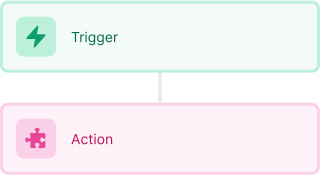
Make your workflow even more flexible using built-in apps.
Customize your automation with tools that match your specific needs, whether it's scheduling theme changes or syncing with your CRM.
Personalization ensures your workflows fit your unique business requirements.
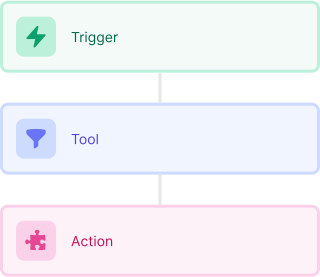
Finally, enable your workflow. You've just automated a task that will save you time and reduce manual effort.
With MESA, complex processes become simple, freeing you up to focus on what matters most—growing your business.
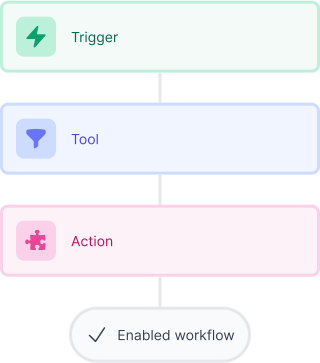

Get help from our team of experts and industry partners, who are dedicated to ensuring your MESA experience is smooth, efficient, and tailored to your exact business needs.