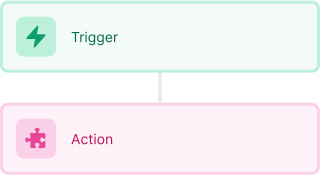
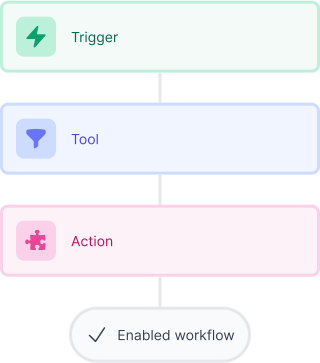
Start with a trigger
Select a trigger that sets your workflow in motion.
This could be anything from a new order in your Shopify store to a customer signing up for your newsletter.
Triggers are the starting points that tell MESA when to act.

MESA is the most flexible way automate Skio to Zendesk. Easily add workflows to simplify your work.
MESA helps you make workflows that keeps your business running. A trigger is the event to start a workflow then, actions are performed.
ID
Subject
Description
Created At
Updated At
Status
Priority
Type
Actor ID
Requester ID
Submitter ID
Assignee ID
Organization ID
Group ID
Brand ID
Form ID
External ID
Is Public
Tags
Custom Status
Via
Event
ID
Subject
Description
Created At
Updated At
Status
Priority
Type
Actor ID
Requester ID
Submitter ID
Assignee ID
Organization ID
Group ID
Brand ID
Form ID
External ID
Is Public
Tags
Custom Status
Via
Event
Starts when a comment is created.
ID
Subject
Description
Created At
Updated At
Status
Priority
Type
Actor ID
Requester ID
Submitter ID
Assignee ID
Organization ID
Group ID
Brand ID
Form ID
External ID
Is Public
Tags
Custom Status
Via
Event
ID
Subject
Description
Created At
Updated At
Status
Priority
Type
Actor ID
Requester ID
Submitter ID
Assignee ID
Organization ID
Group ID
Brand ID
Form ID
External ID
Is Public
Tags
Custom Status
Via
Event
ID
Subject
Description
Created At
Updated At
Status
Priority
Type
Actor ID
Requester ID
Submitter ID
Assignee ID
Organization ID
Group ID
Brand ID
Form ID
External ID
Is Public
Tags
Custom Status
Via
Event
ID
Subject
Description
Created At
Updated At
Status
Priority
Type
Actor ID
Requester ID
Submitter ID
Assignee ID
Organization ID
Group ID
Brand ID
Form ID
External ID
Is Public
Tags
Custom Status
Via
Event
ID
Subject
Description
Created At
Updated At
Status
Priority
Type
Actor ID
Requester ID
Submitter ID
Assignee ID
Organization ID
Group ID
Brand ID
Form ID
External ID
Is Public
Tags
Custom Status
Via
ID
Subject
Description
Created At
Updated At
Status
Priority
Type
Actor ID
Requester ID
Submitter ID
Assignee ID
Organization ID
Group ID
Brand ID
Form ID
External ID
Is Public
Tags
Custom Status
Via
Event
Starts when a ticket's custom status is updated.
Starts when a ticket is deleted.
ID
Subject
Description
Created At
Updated At
Status
Priority
Type
Actor ID
Requester ID
Submitter ID
Assignee ID
Organization ID
Group ID
Brand ID
Form ID
External ID
Is Public
Tags
Custom Status
Via
Event
ID
Subject
Description
Created At
Updated At
Status
Priority
Type
Actor ID
Requester ID
Submitter ID
Assignee ID
Organization ID
Group ID
Brand ID
Form ID
External ID
Is Public
Tags
Custom Status
Via
Event
ID
Subject
Description
Created At
Updated At
Status
Priority
Type
Actor ID
Requester ID
Submitter ID
Assignee ID
Organization ID
Group ID
Brand ID
Form ID
External ID
Is Public
Tags
Custom Status
Via
Event
ID
Subject
Description
Created At
Updated At
Status
Priority
Type
Actor ID
Requester ID
Submitter ID
Assignee ID
Organization ID
Group ID
Brand ID
Form ID
External ID
Is Public
Tags
Custom Status
Via
Event
ID
Subject
Description
Created At
Updated At
Status
Priority
Type
Actor ID
Requester ID
Submitter ID
Assignee ID
Organization ID
Group ID
Brand ID
Form ID
External ID
Is Public
Tags
Custom Status
Via
Event
ID
Subject
Description
Created At
Updated At
Status
Priority
Type
Actor ID
Requester ID
Submitter ID
Assignee ID
Organization ID
Group ID
Brand ID
Form ID
External ID
Is Public
Tags
Custom Status
Via
Event
Timestamp
ID
Subject
Description
Created At
Updated At
Status
Priority
Type
Actor ID
Requester ID
Submitter ID
Assignee ID
Organization ID
Group ID
Brand ID
Form ID
External ID
Is Public
Tags
Custom Status
Via
Event
ID
Subject
Description
Created At
Updated At
Status
Priority
Type
Actor ID
Requester ID
Submitter ID
Assignee ID
Organization ID
Group ID
Brand ID
Form ID
External ID
Is Public
Tags
Custom Status
Via
Event
ID
Subject
Description
Created At
Updated At
Status
Priority
Type
Actor ID
Requester ID
Submitter ID
Assignee ID
Organization ID
Group ID
Brand ID
Form ID
External ID
Is Public
Tags
Custom Status
Via
Event
Starts when a ticket's SLA policy is updated.
ID
Subject
Description
Created At
Updated At
Status
Priority
Type
Actor ID
Requester ID
Submitter ID
Assignee ID
Organization ID
Group ID
Brand ID
Form ID
External ID
Is Public
Tags
Custom Status
Via
Event
ID
Subject
Description
Created At
Updated At
Status
Priority
Type
Actor ID
Requester ID
Submitter ID
Assignee ID
Organization ID
Group ID
Brand ID
Form ID
External ID
Is Public
Tags
Custom Status
Via
Event
Starts when a ticket is updated.
Starts when a discount code is applied.
Shopify Order ID
Shopify Order Name
Subscription ID
Timestamp
User Cognito Username
User Email
User Type
Amount
Code Platform ID
Method
Redeem Code
Type
Price
Product Title
Product Variant ID
Product Variant Title
Quantity
Subscription ID
Timestamp
User Cognito Username
User Email
User Type
Subscription ID
Timestamp
User Cognito Username
User Email
User Type
Starts when a subscription is updated.
0
Count
Create a group.
Organization
Ticket
Ticket
User
Remove a group.
Remove an organization.
Remove a ticket.
Attachments
Audit ID
Author ID
Body
Created At
HTML Body
ID
Metadata
Plain Body
Public
Type
Uploads
Via
Created At
Default
Deleted
Description
ID
Is Public
Name
Updated At
URL
Count
Next Page
Organizations
Previous Page
Allow Attachments
Allow Channelback
Assignee Email
Assignee ID
Attribute Value Ids
Brand ID
Collaborator Ids
Collaborators
Comment
Created At
Custom Fields
Custom Status ID
Description
Due At
Email Cc Ids
Email Ccs
Encoded ID
External ID
Follower Ids
Followers
Followup Ids
From Messaging Channel
Generated Timestamp
Group ID
Has Incidents
ID
Is Public
Macro ID
Macro Ids
Metadata
Organization ID
Priority
Problem ID
Raw Subject
Recipient
Requester
Requester ID
Safe Update
Satisfaction Rating
Sharing Agreement Ids
Status
Subject
Submitter ID
Tags
Ticket Form ID
Type
Updated At
Updated Stamp
URL
Via
Via Followup Source ID
Via ID
Voice Comment
Active
Alias
Chat Only
Created At
Custom Role ID
Default Group ID
Details
External ID
Iana Time Zone
ID
Last Login At
Locale
Locale ID
Moderator
Name
Notes
Only Private Comments
Organization ID
Phone
Photo
Remote Photo URL
Restricted Agent
Role
Role Type
Shared
Shared Agent
Shared Phone Number
Signature
Suspended
Tags
Ticket Restriction
Time Zone
Two Factor Auth Enabled
Updated At
URL
User Fields
Verified
0
Created At
Default
Deleted
Description
ID
Is Public
Name
Updated At
URL
Created At
Details
Domain Names
External ID
Group ID
ID
Name
Notes
Organization Fields
Shared Comments
Shared Tickets
Tags
Updated At
URL
Allow Attachments
Allow Channelback
Assignee ID
Brand ID
Collaborator Ids
Collaborators
Created At
Custom Fields
Custom Status ID
Description
Due At
Email Cc Ids
Encoded ID
External ID
Follower Ids
Followup Ids
From Messaging Channel
Generated Timestamp
Group ID
Has Incidents
ID
Is Public
Macro Ids
Organization ID
Priority
Problem ID
Raw Subject
Recipient
Requester ID
Satisfaction Rating
Sharing Agreement Ids
Status
Subject
Submitter ID
Tags
Ticket Form ID
Type
Updated At
URL
Via
Via Followup Source ID
Active
Alias
Chat Only
Created At
Custom Role ID
Default Group ID
Details
External ID
Iana Time Zone
ID
Last Login At
Locale
Locale ID
Moderator
Name
Notes
Only Private Comments
Organization ID
Phone
Photo
Remote Photo URL
Restricted Agent
Role
Role Type
Shared
Shared Agent
Shared Phone Number
Signature
Suspended
Tags
Ticket Restriction
Time Zone
Two Factor Auth Enabled
Updated At
URL
User Fields
Verified
Count
Facets
Next Page
Previous Page
Results
Modify a group's details.
Modify an organization's details.
Ticket
User
Upload a file.
Thousands of professionals trust MESA to help them multiply their impact without multiplying their work.






Skio to Zendesk automations get more done in less time. Automate the everyday tasks holding back your potential growth.
Skio's integration with Shopify allows you to create and manage various subscription plans effortlessly. Whether it's a monthly, quarterly, or annual plan, Skio's intuitive interface simplifies the process, enabling you to tailor subscriptions to fit your products and your customers' needs.
Forget about manual billing! Skio takes care of recurring billing and automatically sends renewal reminders to your customers. This not only saves you valuable time but also enhances the customer experience by making renewals hassle-free.
With Skio, you can offer personalized subscription boxes, add-ons, and upsells directly within your Shopify store. This customization fosters a more engaging shopping experience, encouraging repeat business and fostering loyalty among your subscribers.
Want to know how your subscriptions are performing? Skio's robust analytics integrate with Shopify to provide real-time insights into subscriber behavior, churn rate, lifetime value, and more. This data empowers you to make informed decisions to continually improve your business.
Implement retention strategies like pause, skip, or cancel controls for subscribers. By giving customers flexibility and control over their subscriptions, you enhance their satisfaction and increase the likelihood of long-term retention.
Connect order data directly to support tickets, enabling agents to resolve issues faster with complete customer purchase history and context.
Connect return reasons, product details, and customer data to streamline the support process and reduce resolution time for refunds and exchanges.
Create targeted follow-up workflows for unhappy customers while identifying satisfied customers for upselling opportunities and testimonial requests.
Connect customer communication preferences and issue types to ensure tickets reach the right specialists for faster resolution times.
Create comprehensive support performance reports that track team productivity, common issues, and customer satisfaction trends for data-driven improvements.

MESA makes automation achievable so you can multiply your impact without multiplying the work.
Try MESA for free 7-day trial included. Cancel anytime.MESA helps you connect two or more apps to handle repetitive tasks automatically, no code necessary.
Select a trigger that sets your workflow in motion.
This could be anything from a new order in your Shopify store to a customer signing up for your newsletter.
Triggers are the starting points that tell MESA when to act.


Next, choose the action that should follow the trigger.
Actions are the tasks that MESA will perform automatically, such as sending a confirmation email or updating your product inventory.
Linking actions to triggers is how you build a seamless workflow process.
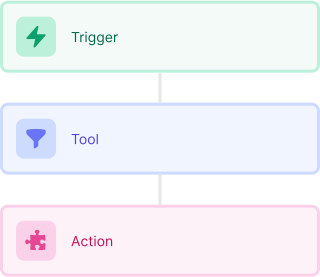
Make your workflow even more flexible using built-in apps.
Customize your automation with tools that match your specific needs, whether it's scheduling theme changes or syncing with your CRM.
Personalization ensures your workflows fit your unique business requirements.
Finally, enable your workflow. You've just automated a task that will save you time and reduce manual effort.
With MESA, complex processes become simple, freeing you up to focus on what matters most—growing your business.

Get help from our team of experts and industry partners, who are dedicated to ensuring your MESA experience is smooth, efficient, and tailored to your exact business needs.