Start with a trigger
Select a trigger that sets your workflow in motion.
This could be anything from a new order in your Shopify store to a customer signing up for your newsletter.
Triggers are the starting points that tell MESA when to act.


MESA is the most flexible way automate Help Scout to Printful. Easily add workflows to simplify your work.
MESA helps you make workflows that keeps your business running. A trigger is the event to start a workflow then, actions are performed.
Starts when an order is canceled.
Starts when an order is created.
Starts when an order has failed.
Starts when an order is updated.
Starts when a package is returned.
Starts when a package is shipped.
ID
Customer ID
Created At
Threads
ID
Customer ID
Created At
Threads
ID
Number
Threads
Type
Folder ID
Status
State
Subject
Preview
Mailbox ID
Assignee
Created By
Created At
Closed By
Closed By User
Closed At
User Updated At
Customer Waiting Since
Source
Tags
Cc
Bcc
Primary Customer
Snooze
Next Event
Custom Fields
Embedded
Links
ID
Number
Threads
Type
Folder ID
Status
State
Subject
Preview
Mailbox ID
Assignee
Created By
Created At
Closed By
Closed By User
Closed At
User Updated At
Customer Waiting Since
Source
Tags
Cc
Bcc
Primary Customer
Snooze
Next Event
Custom Fields
Embedded
Links
ID
Number
Threads
Type
Folder ID
Status
State
Subject
Preview
Mailbox ID
Assignee
Created By
Created At
Closed By
Closed By User
Closed At
User Updated At
Customer Waiting Since
Source
Tags
Cc
Bcc
Primary Customer
Snooze
Next Event
Custom Fields
Embedded
Links
ID
Number
Threads
Type
Folder ID
Status
State
Subject
Preview
Mailbox ID
Assignee
Created By
Created At
Closed By
Closed By User
Closed At
User Updated At
Customer Waiting Since
Source
Tags
Cc
Bcc
Primary Customer
Snooze
Next Event
Custom Fields
Embedded
Links
ID
Number
Threads
Type
Folder ID
Status
State
Subject
Preview
Mailbox ID
Assignee
Created By
Created At
Closed By
Closed By User
Closed At
User Updated At
Customer Waiting Since
Source
Tags
Cc
Bcc
Primary Customer
Snooze
Next Event
Custom Fields
Embedded
Links
Starts when a conversation is deleted.
ID
Number
Threads
Type
Folder ID
Status
State
Subject
Preview
Mailbox ID
Assignee
Created By
Created At
Closed By
Closed By User
Closed At
User Updated At
Customer Waiting Since
Source
Tags
Cc
Bcc
Primary Customer
Snooze
Next Event
Custom Fields
Embedded
Links
ID
Number
Threads
Type
Folder ID
Status
State
Subject
Preview
Mailbox ID
Assignee
Created By
Created At
Closed By
Closed By User
Closed At
User Updated At
Customer Waiting Since
Source
Tags
Cc
Bcc
Primary Customer
Snooze
Next Event
Custom Fields
Embedded
Links
ID
Number
Threads
Type
Folder ID
Status
State
Subject
Preview
Mailbox ID
Assignee
Created By
Created At
Closed By
Closed By User
Closed At
User Updated At
Customer Waiting Since
Source
Tags
Cc
Bcc
Primary Customer
Snooze
Next Event
Custom Fields
Embedded
Links
ID
Number
Threads
Type
Folder ID
Status
State
Subject
Preview
Mailbox ID
Assignee
Created By
Created At
Closed By
Closed By User
Closed At
User Updated At
Customer Waiting Since
Source
Tags
Cc
Bcc
Primary Customer
Snooze
Next Event
Custom Fields
Embedded
Links
ID
Number
Threads
Type
Folder ID
Status
State
Subject
Preview
Mailbox ID
Assignee
Created By
Created At
Closed By
Closed By User
Closed At
User Updated At
Customer Waiting Since
Source
Tags
Cc
Bcc
Primary Customer
Snooze
Next Event
Custom Fields
Embedded
Links
ID
First Name
Last Name
Emails
Created At
Photo URL
Phone
Job Title
Organization
Background
Social Profiles
Address
ID
First Name
Last Name
Emails
Created At
Photo URL
Phone
Job Title
Organization
Background
Social Profiles
Address
ID
First Name
Last Name
Emails
Created At
Photo URL
Phone
Job Title
Organization
Background
Social Profiles
Address
ID
Conversation ID
Rating
Comment
Submitted At
Rating ID
Conversation ID
Score
Comment
Created At
ID
Tag
Color
ID
Tag
Color
ID
Tag
Color
Type
ID
URL
Options
Hash
Filename
Mime Type
Size
Width
Height
Dpi
Status
Created
Thumbnail URL
Preview URL
Visible
Message
Code
Result
Code
Result
ID
External ID
Store
Status
Shipping
Shipping Service Name
Created
Updated
Recipient
Items
Branding Items
Incomplete Items
Costs
Retail Costs
Pricing Breakdown
Shipments
Gift
Packing Slip
Code
Result
ID
External ID
Store
Status
Shipping
Shipping Service Name
Created
Updated
Recipient
Items
Branding Items
Incomplete Items
Costs
Retail Costs
Pricing Breakdown
Shipments
Gift
Packing Slip
Variant Ids
Format
Width
Product Options
Option Groups
Options
Files
Product Template ID
Sync Product
Sync Variants
ID
External ID
Store
Status
Shipping
Shipping Service Name
Created
Updated
Recipient
Items
Branding Items
Incomplete Items
Costs
Retail Costs
Pricing Breakdown
Shipments
Gift
Packing Slip
ID
External ID
Sync Product ID
Name
Synced
Variant ID
Retail Price
Currency
Is Ignored
Sku
Product
Files
Options
Main Category ID
Warehouse Product Variant ID
Success
Sync Product
Sync Variants
Sync Product
Sync Variants
Sync Variant
Sync Product
Sync Variant
Sync Product
Removes the webhook URL and all event types from the store. Method returns current webhook configuration after the update.
Costs
Retail Costs
ID
Status
Confirm Hash
Submitted Design
Recommended Design
Approval Sheet
0
ID
Parent ID
Image URL
Size
Title
Code
Name
States
Code
Result
Version
Min Dpi
Variant Mapping
Templates
Conflicting Placements
ID
External ID
Store
Status
Shipping
Shipping Service Name
Created
Updated
Recipient
Items
Branding Items
Incomplete Items
Costs
Retail Costs
Pricing Breakdown
Shipments
Gift
Packing Slip
Product ID
Available Placements
Printfiles
Variant Printfiles
Option Groups
Options
ID
Main Category ID
Type
Type Name
Title
Brand
Model
Image
Variant Count
Currency
Files
Options
Is Discontinued
Avg Fulfillment Time
Description
Techniques
ID
External ID
Name
Variants
Synced
Thumbnail
Thumbnail URL
Is Ignored
ID
External ID
Name
Variants
Synced
Thumbnail
Thumbnail URL
Is Ignored
Items
ID
Name
Status
Currency
Image URL
Retail Price
Variants
Returns a list of scopes associated with the token
Returns configured webhook URL and list of webhook event types enabled for the store
ID
Type
Name
ID
Type
Name
ID
Parent ID
Image URL
Size
Title
Type
ID
URL
Options
Hash
Filename
Mime Type
Size
Width
Height
Dpi
Status
Created
Thumbnail URL
Preview URL
Visible
Task Key
Status
Error
Mockups
Printfiles
ID
External ID
Store
Status
Shipping
Shipping Service Name
Created
Updated
Recipient
Items
Branding Items
Incomplete Items
Costs
Retail Costs
Pricing Breakdown
Shipments
Gift
Packing Slip
Product
Variants
Product ID
Available Sizes
Size Tables
ID
Product ID
External Product ID
Title
Available Variant Ids
Option Data
Colors
Sizes
Mockup File URL
Placements
Created At
Updated At
Sync Product
Sync Variants
Sync Product
Sync Variants
Sync Variant
Sync Product
Sync Variant
Sync Product
Variant
Product
ID
Name
Status
Currency
Image URL
Retail Price
Variants
Allows to enable webhook URL for the store and select webhook event types that will be sent to this URL. Note that only one webhook URL can be active for a store, so calling this method disables all existing webhook configuration. Setting up the [Stock updated](#operation/stockUpdated) webhook requires passing IDs for products that need to be monitored for changes. Stock update webhook will only include information for specified products. These product IDs need to be set up using params property. Method returns current webhook configuration after the update.
ID
External ID
Store
Status
Shipping
Shipping Service Name
Created
Updated
Recipient
Items
Branding Items
Incomplete Items
Costs
Retail Costs
Pricing Breakdown
Shipments
Gift
Packing Slip
Sync Product
Sync Variants
ID
ID
ID
ID
Customer
Text
Imported
Created At
Attachments
Customer
Subject
Auto Reply
Imported
Type
Assign To
Mailbox ID
Status
Created At
Threads
Tags
Fields
User
Closed At
First Name
Last Name
Phone
Photo URL
Job Title
Photo Type
Background
Location
Organization
Gender
Age
Emails
Phones
Chats
Social Profiles
Websites
Address
Properties
Value
Type
Customer
Text
Draft
Imported
Status
User
Cc
Bcc
Created At
Attachments
Remove a conversation.
Remove a customer.
Unschedule a thread.
Remove a user.
ID
Type
Status
State
Created At
Created By
Body
Source
Customer
Saved Reply ID
Assigned To
To
Cc
Bcc
Rating
Scheduled
Embedded
ID
Number
Threads
Type
Folder ID
Status
State
Subject
Preview
Mailbox ID
Assignee
Created By
Created At
Closed By
Closed By User
Closed At
User Updated At
Customer Waiting Since
Source
Tags
Cc
Bcc
Primary Customer
Snooze
Next Event
Custom Fields
Embedded
Links
ID
First Name
Last Name
Gender
Job Title
Location
Organization
Photo Type
Photo URL
Age
Created At
Updated At
Background
Draft
Embedded
Links
ID
Value
Type
Links
Publish a scheduled thread. The draft thread is turned into a reply/forward thread, and the message is sent to the customer.
ID
Number
Threads
Type
Folder ID
Status
State
Subject
Preview
Mailbox ID
Assignee
Created By
Created At
Closed By
Closed By User
Closed At
User Updated At
Customer Waiting Since
Source
Tags
Cc
Bcc
Primary Customer
Snooze
Next Event
Custom Fields
Embedded
Links
ID
First Name
Last Name
Gender
Job Title
Location
Organization
Photo Type
Photo URL
Age
Created At
Updated At
Background
Draft
Embedded
Links
ID
First Name
Last Name
Role
Timezone
Photo URL
Created At
Updated At
Type
Mention
Initials
Job Title
Phone
Alternate Emails
Subject
Auto Reply
Imported
Type
Assign To
Mailbox ID
Status
Tags
Fields
Threads
Tags
Modify a customer.
Snoozed Until
Scheduled For
Unschedule On Customer Reply
Send As Creator
Thousands of professionals trust MESA to help them multiply their impact without multiplying their work.






Help Scout to Printful automations get more done in less time. Automate the everyday tasks holding back your potential growth.
Automatically update customer profiles in Salesforce, HubSpot, or another CRM whenever a new HelpScout conversation is created. Keep sales and support teams aligned with real-time customer interactions.
When high-value customers reach out, automatically tag their conversations and notify your team in Slack or Asana, ensuring top-tier service and faster response times.
After a support interaction, automatically enroll customers in a follow-up email sequence in Klaviyo or Mailchimp based on their inquiry type, ensuring tailored engagement.
Detect keywords like “refund” or “cancel” in conversations and instantly escalate to a manager in Zendesk, Slack, or Asana for faster resolution.
Automatically pull Shopify order details into HelpScout conversations, giving agents full purchase history context without switching apps—leading to faster, more personalized support.
Offer customized products from data in other apps and Printful will print and ship them as orders come in.
Sell printed products without holding inventory, as Printful takes care of printing, packing, and shipping.
Let shoppers upload their own artwork to be printed then shipped. A truly automated business model.

MESA makes automation achievable so you can multiply your impact without multiplying the work.
Try MESA for free 7-day trial included. Cancel anytime.MESA helps you connect two or more apps to handle repetitive tasks automatically, no code necessary.
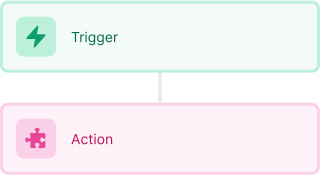
Select a trigger that sets your workflow in motion.
This could be anything from a new order in your Shopify store to a customer signing up for your newsletter.
Triggers are the starting points that tell MESA when to act.


Next, choose the action that should follow the trigger.
Actions are the tasks that MESA will perform automatically, such as sending a confirmation email or updating your product inventory.
Linking actions to triggers is how you build a seamless workflow process.
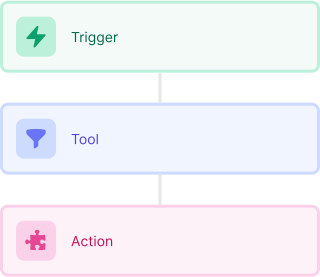
Make your workflow even more flexible using built-in apps.
Customize your automation with tools that match your specific needs, whether it's scheduling theme changes or syncing with your CRM.
Personalization ensures your workflows fit your unique business requirements.
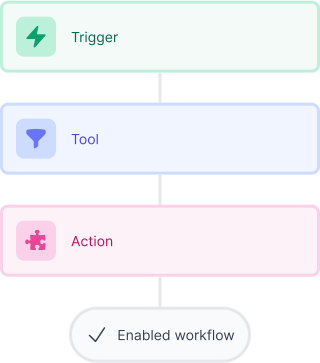
Finally, enable your workflow. You've just automated a task that will save you time and reduce manual effort.
With MESA, complex processes become simple, freeing you up to focus on what matters most—growing your business.

Get help from our team of experts and industry partners, who are dedicated to ensuring your MESA experience is smooth, efficient, and tailored to your exact business needs.