Start with a trigger
Select a trigger that sets your workflow in motion.
This could be anything from a new order in your Shopify store to a customer signing up for your newsletter.
Triggers are the starting points that tell MESA when to act.


MESA is the most flexible way automate ClickUp to Image . Easily add workflows to simplify your work.
MESA helps you make workflows that keeps your business running. A trigger is the event to start a workflow then, actions are performed.
ID
Custom ID
Custom Item ID
Name
Text Content
Description
Status
Orderindex
Date Created
Date Updated
Date Closed
Date Done
Archived
Creator
Assignees
Group Assignees
Watchers
Checklists
Tags
Parent
Top Level Parent
Priority
Due Date
Start Date
Points
Time Estimate
Time Spent
Custom Fields
Dependencies
Linked Tasks
Locations
Team ID
URL
Sharing
Permission Level
List
Project
Folder
Space
Attachments
ID
Name
Comment
History Items
ID
Name
Comment
History Items
ID
Custom ID
Custom Item ID
Name
Text Content
Description
Status
Orderindex
Date Created
Date Updated
Date Closed
Date Done
Archived
Creator
Assignees
Group Assignees
Watchers
Checklists
Tags
Parent
Top Level Parent
Priority
Due Date
Start Date
Points
Time Estimate
Time Spent
Custom Fields
Dependencies
Linked Tasks
Locations
Team ID
URL
Sharing
Permission Level
List
Project
Folder
Space
Attachments
ID
Webhook ID
Event
History Items
ID
Custom ID
Custom Item ID
Name
Text Content
Description
Status
Orderindex
Date Created
Date Updated
Date Closed
Date Done
Archived
Creator
Assignees
Group Assignees
Watchers
Checklists
Tags
Parent
Top Level Parent
Priority
Due Date
Start Date
Points
Time Estimate
Time Spent
Custom Fields
Dependencies
Linked Tasks
Locations
Team ID
URL
Sharing
Permission Level
List
Project
Folder
Space
Attachments
ID
Custom ID
Custom Item ID
Name
Text Content
Description
Status
Orderindex
Date Created
Date Updated
Date Closed
Date Done
Archived
Creator
Assignees
Group Assignees
Watchers
Checklists
Tags
Parent
Top Level Parent
Priority
Due Date
Start Date
Points
Time Estimate
Time Spent
Custom Fields
Dependencies
Linked Tasks
Locations
Team ID
URL
Sharing
Permission Level
List
Project
Folder
Space
Attachments
ID
Custom ID
Custom Item ID
Name
Text Content
Description
Status
Orderindex
Date Created
Date Updated
Date Closed
Date Done
Archived
Creator
Assignees
Group Assignees
Watchers
Checklists
Tags
Parent
Top Level Parent
Priority
Due Date
Start Date
Points
Time Estimate
Time Spent
Custom Fields
Dependencies
Linked Tasks
Locations
Team ID
URL
Sharing
Permission Level
List
Project
Folder
Space
Attachments
ID
Custom ID
Custom Item ID
Name
Text Content
Description
Status
Orderindex
Date Created
Date Updated
Date Closed
Date Done
Archived
Creator
Assignees
Group Assignees
Watchers
Checklists
Tags
Parent
Top Level Parent
Priority
Due Date
Start Date
Points
Time Estimate
Time Spent
Custom Fields
Dependencies
Linked Tasks
Locations
Team ID
URL
Sharing
Permission Level
List
Project
Folder
Space
Attachments
ID
Custom ID
Custom Item ID
Name
Text Content
Description
Status
Orderindex
Date Created
Date Updated
Date Closed
Date Done
Archived
Creator
Assignees
Group Assignees
Watchers
Checklists
Tags
Parent
Top Level Parent
Priority
Due Date
Start Date
Points
Time Estimate
Time Spent
Custom Fields
Dependencies
Linked Tasks
Locations
Team ID
URL
Sharing
Permission Level
List
Project
Folder
Space
Attachments
ID
Custom ID
Custom Item ID
Name
Text Content
Description
Status
Orderindex
Date Created
Date Updated
Date Closed
Date Done
Archived
Creator
Assignees
Group Assignees
Watchers
Checklists
Tags
Parent
Top Level Parent
Priority
Due Date
Start Date
Points
Time Estimate
Time Spent
Custom Fields
Dependencies
Linked Tasks
Locations
Team ID
URL
Sharing
Permission Level
List
Project
Folder
Space
Attachments
ID
Name
Time Spent
Time Estimate
History Items
ID
Custom ID
Custom Item ID
Name
Text Content
Description
Status
Orderindex
Date Created
Date Updated
Date Closed
Date Done
Archived
Creator
Assignees
Group Assignees
Watchers
Checklists
Tags
Parent
Top Level Parent
Priority
Due Date
Start Date
Points
Time Estimate
Time Spent
Custom Fields
Dependencies
Linked Tasks
Locations
Team ID
URL
Sharing
Permission Level
List
Project
Folder
Space
Attachments
Add text overlay to an image.
Add watermark overlay to an image.
Transform an image's auto-brightness.
Transform an image's auto-color.
Transform an image's auto-contrast.
Transform an image's contrast.
Transform an image's fill light.
Transform an image's gamma.
Identify the colors in an image.
Improve an image.
Transform an image's vibrancy.
Add a tag to a task.
Name
Name
Assignee
Name
Name
Content
Due Date
Due Date Time
Priority
Assignee
Status
Name
Content
Due Date
Due Date Time
Priority
Assignee
Status
Name
Multiple Assignees
Features
Tag
Name
Description
Markdown Content
Assignees
Tags
Status
Priority
Due Date
Due Date Time
Time Estimate
Start Date
Start Date Time
Notify All
Parent
Links To
Check Required Custom Fields
Custom Fields
Remove a checklist from a task.
Remove a checklist item from a task checklist.
Remove a list.
Remove a tag from a space.
Remove a task.
ID
Custom ID
Name
Text Content
Description
Status
Orderindex
Date Created
Date Updated
Date Closed
Creator
Assignees
Watchers
Checklists
Tags
Parent
Priority
Due Date
Start Date
Points
Time Estimate
Time Spent
Custom Fields
Dependencies
Linked Tasks
Team ID
URL
List
Project
Folder
Space
ID
Name
Orderindex
Content
Status
Priority
Assignee
Task Count
Due Date
Start Date
Folder
Space
Archived
Override Statuses
Statuses
ID
Name
Orderindex
Content
Status
Priority
Assignee
Task Count
Due Date
Start Date
Folder
Space
Archived
Override Statuses
Statuses
ID
Name
Orderindex
Override Statuses
Hidden
Space
Task Count
Lists
Name
Tag Fg
Tag Bg
ID
Name
Private
Statuses
Multiple Assignees
Features
ID
Custom ID
Name
Text Content
Description
Status
Orderindex
Date Created
Date Updated
Date Closed
Creator
Assignees
Watchers
Checklists
Tags
Parent
Priority
Due Date
Start Date
Points
Time Estimate
Time Spent
Custom Fields
Dependencies
Linked Tasks
Team ID
URL
List
Project
Folder
Space
ID
Name
Color
Avatar
Members
Remove a tag from a task.
ID
Name
Orderindex
Content
Status
Priority
Assignee
Task Count
Due Date
Start Date
Folder
Space
Archived
Override Statuses
Statuses
ID
Custom ID
Name
Text Content
Description
Status
Orderindex
Date Created
Date Updated
Date Closed
Creator
Assignees
Watchers
Checklists
Tags
Parent
Priority
Due Date
Start Date
Points
Time Estimate
Time Spent
Custom Fields
Dependencies
Linked Tasks
Team ID
URL
List
Project
Folder
Space
Name
Position
Name
Assignee
Resolved
Parent
Name
Content
Due Date
Due Date Time
Priority
Assignee
Unset Status
Tag
Name
Description
Markdown Content
Assignees
Status
Priority
Due Date
Due Date Time
Time Estimate
Start Date
Start Date Time
Parent
Archived
Custom Fields
Thousands of professionals trust MESA to help them multiply their impact without multiplying their work.






ClickUp to Image automations get more done in less time. Automate the everyday tasks holding back your potential growth.
When a Shopify order comes in, automatically create a ClickUp task with order details. Assign to fulfillment team, set due dates, and track progress without manual entry.
Turn Help Scout or Zendesk tickets into ClickUp tasks instantly. Keep your team aligned on customer issues without switching between platforms or duplicating work.
When a shipment delivers or a payment clears, automatically update the corresponding ClickUp task status. Keep projects current without manual status checks or updates.
Low stock alerts or inventory discrepancies trigger ClickUp tasks for your operations team. Set priorities based on urgency and never miss a restock deadline again.
Tally or Typeform submissions automatically become ClickUp tasks. Route requests to the right team, set priorities, and ensure nothing falls through the cracks.
Image allows you to add watermarks, logos, or other branding elements to product images quickly and consistently. This not only helps in protecting intellectual property but also ensures that your brand's visual identity is uniformly represented across all product images, contributing to a more cohesive and professional look.
Through sophisticated image manipulation, you can enhance the visual appeal of your product images, making them more attractive to potential customers. Whether it's adjusting colors to make them more vibrant or adding artistic effects, Image helps contribute to higher engagement and conversion rates.
By identifying and analyzing colors within product images, Image can provide valuable insights for targeted marketing. For instance, if a particular color is trending, create tailored promotions, recommendations, or advertising campaigns. This data-driven approach enables more precise and effective marketing strategies.
With the ability to add text overlays or manipulate images, you can create dynamic and customized product images on the fly. For instance, you could display personalized messages or special offers directly on product images, providing a unique and engaging shopping experience for each customer.
Image simplifies the process of editing multiple images by automating common tasks like resizing, cropping, or color adjustment. This automation saves valuable time and resources, allowing you to focus on other essential aspects of their business.

MESA makes automation achievable so you can multiply your impact without multiplying the work.
Try MESA for free 7-day trial included. Cancel anytime.MESA helps you connect two or more apps to handle repetitive tasks automatically, no code necessary.
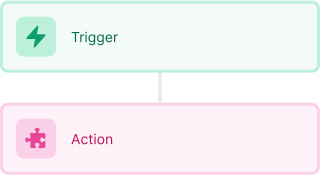
Select a trigger that sets your workflow in motion.
This could be anything from a new order in your Shopify store to a customer signing up for your newsletter.
Triggers are the starting points that tell MESA when to act.


Next, choose the action that should follow the trigger.
Actions are the tasks that MESA will perform automatically, such as sending a confirmation email or updating your product inventory.
Linking actions to triggers is how you build a seamless workflow process.
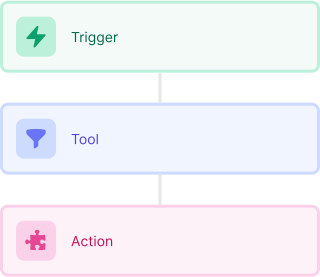
Make your workflow even more flexible using built-in apps.
Customize your automation with tools that match your specific needs, whether it's scheduling theme changes or syncing with your CRM.
Personalization ensures your workflows fit your unique business requirements.
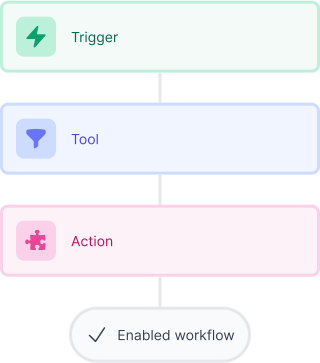
Finally, enable your workflow. You've just automated a task that will save you time and reduce manual effort.
With MESA, complex processes become simple, freeing you up to focus on what matters most—growing your business.

Get help from our team of experts and industry partners, who are dedicated to ensuring your MESA experience is smooth, efficient, and tailored to your exact business needs.